Community Training Classes & Labs > F5 Programmability Training Index
Lab 3.3: Deploy L4-7 Services
![digraph breadcrumb {
rankdir="LR"
ranksep=.4
node [fontsize=10,style="rounded,filled",shape=box,color=gray72,margin="0.05,0.05",height=0.1]
fontname = "arial-bold"
fontsize = 10
labeljust="l"
subgraph cluster_provider {
style = "rounded,filled"
color = lightgrey
height = .75
label = "Service Templates, Catalog and Deployments"
onboarding [label="Basics",color="palegreen"]
templates [label="Templates",color="palegreen"]
catalog [label="Catalog",color="steelblue1"]
deployments [label="Deployments",color="steelblue1"]
onboarding -> templates -> catalog -> deployments
}
}](../../_images/graphviz-0c95ac045df29856fb4711daa2cd79544439ada9.png)
Up to this point we have spent a lot of time building our toolchain to create a Declarative Service Catalog. We are now at the point where we can perform a Declarative, Abstracted Service Deployment using the iWorkflow Tenant Service Catalog, Tenant API and optionally the built-in Tenant GUI.
As we did in the previous lab we will explore the first deployment in depth so you can implement a full Service Lifecycle: Create, Read, Update and Delete (CRUD) operations. For the remaining deployments you can just repeat the steps used with the first example.
Tenant Overview
iWorkflow Tenants allow Consumers to perform Service Lifecycle operations in an
isolated environment. All actions performed prior to this lab have been in
what’s called the Provider space and, by nature, are masked from Tenants
unless specifically exposed. As a result of the Tenant isolation, each Tenant
maintains its own set of Users and Roles associated with those users, allowing
each Tenant full control of the actions Tenant Users can perform.
During our iWorkflow Onboarding process in Lab 3.1 we created a
Tenant named MyTenant and an associated Tenant User
with a username of tenant. Additionally we gave MyTenant access to
the BIG-IP Connector named BIG-IP A&B Connector:
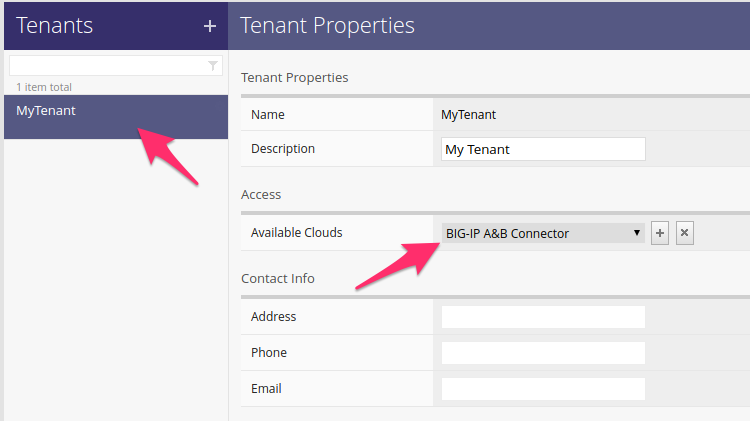
This gives the tenant user the ability to perform CRUD operations on
Service Deployments.
Note
Service Templates can also be assigned to specific Cloud Connectors, allowing you to restrict the use of Templates to a specific Tenant and set of BIG-IP resources.
Task 1 - Login to the iWorkflow Tenant UI
iWorkflow provides a Tenant UI that can act as a simple self-service portal for Tenants. In this lab we’ll use the Tenant UI to monitor the results of various actions we take via the iWorkflow Tenant API.
Perform the following steps to complete this task:
Open a new Chrome window/tab and connect to
https://10.1.1.12Use the
MyTenantTenant User credentials to login:- Username:
tenant - Password:
tenant
- Username:
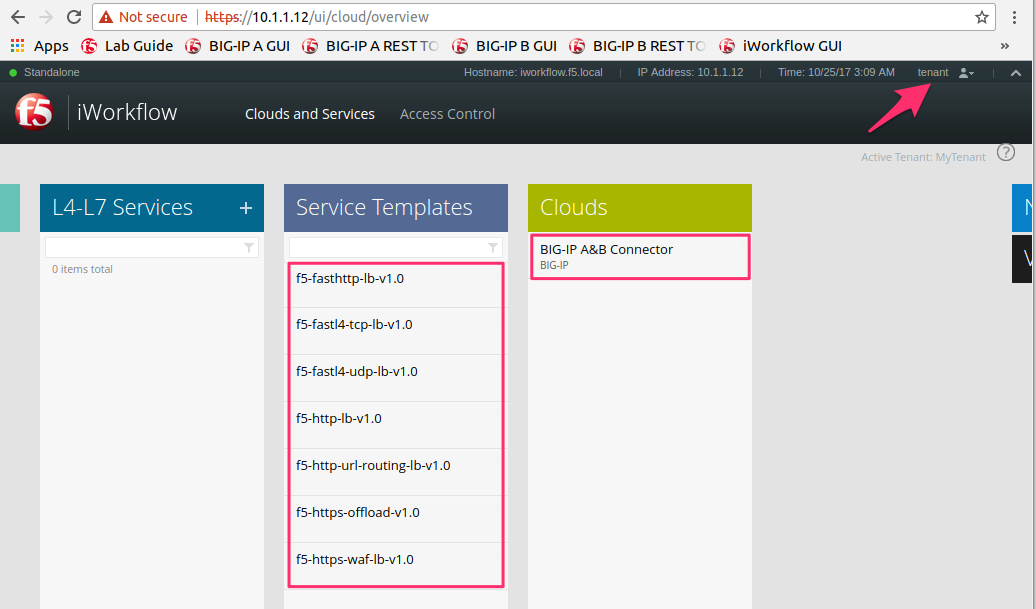
You will see a user interface that looks similar to the Provider UI, however, the access is limited to Tenant specific objects. You can see a list of available Service Templates and Clouds with their associated Connectors:
Task 2 - Authenticate to the iWorkflow Tenant API
As described above, the Tenant interfaces to iWorkflow maintain their own
access control mechanisms. As a result, when performing operations via the
Tenant API you must authenticate with a Tenant User (tenant in this case).
Perform the following steps to complete this task:
- In Postman expand the
Lab 3.3 - Deploy L4-7 Servicesfolder in the collection - Click the
Authenticate and Obtain Token for Tenant Userrequest and examine the JSON request Body. Notice that we are sending the credentials for the Tenant User (tenant). This request will automatically populate theiwf_tenant_auth_tokenvariable in the Postman environment so it can be used by subsequent requests. - Click the Send button on the
Authenticate and Obtain Token for Tenant Userrequest. Check the Test Results tab to ensure the token was populated. - Click the
Set Tenant Authentication Token Timeoutrequest and click the Send button. This request will increase the timeout value for the token so we can complete the lab without having to re-authenticate.
Task 3 - Perform Service Lifecycle Operations
In this task we will perform CRUD operations on Service Deployments demonstrating a full Service Lifecycle for a Tenant Service.
Create
Perform the following steps to complete this task:
Click the
Deploy example-f5-http-lb Servicerequest in the folder.Examine the URI. Notice that the variable
iwf_tenant_nameis used to specify the Tenant we are performing the operation on. In this caseiwf_tenant_nameis set toMyTenantin the Postman environment:
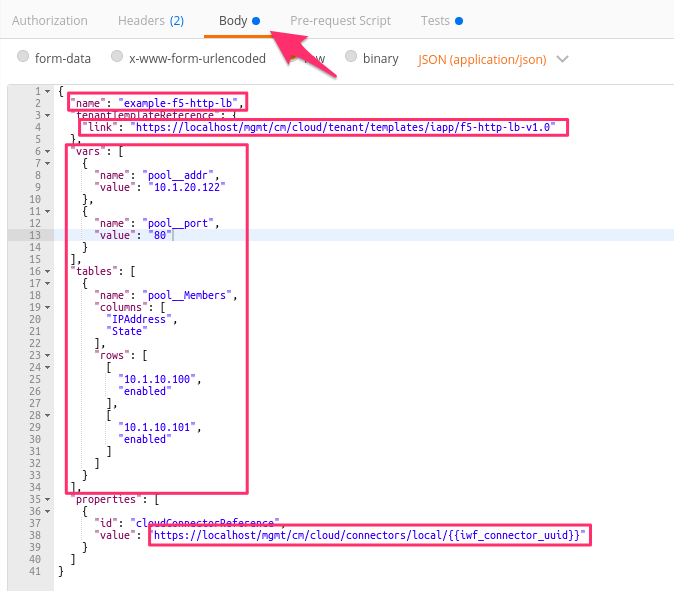
Examine the JSON Request Body; it contains the following data:
- Deployment
name - A URI Reference to the Service Template
f5-http-lb-v1.0 - The input
varsandtablesfor the deployment. These fields were markedTenant Editablein the Service Template - A URI Reference to the Connector to use for deployment. This specifies which BIG-IP devices will be used for this deployment
The data in the list above is higlighted below:
- Deployment
Click the Send button to Create the Service Deployment
Switch to the Chrome iWorkflow Tenant UI window. The
example-f5-http-lbService is now present in the L4-L7 Services pane. Double click the Service and examine its properties. You can compare the values in the UI to the JSON Request Body from the step above.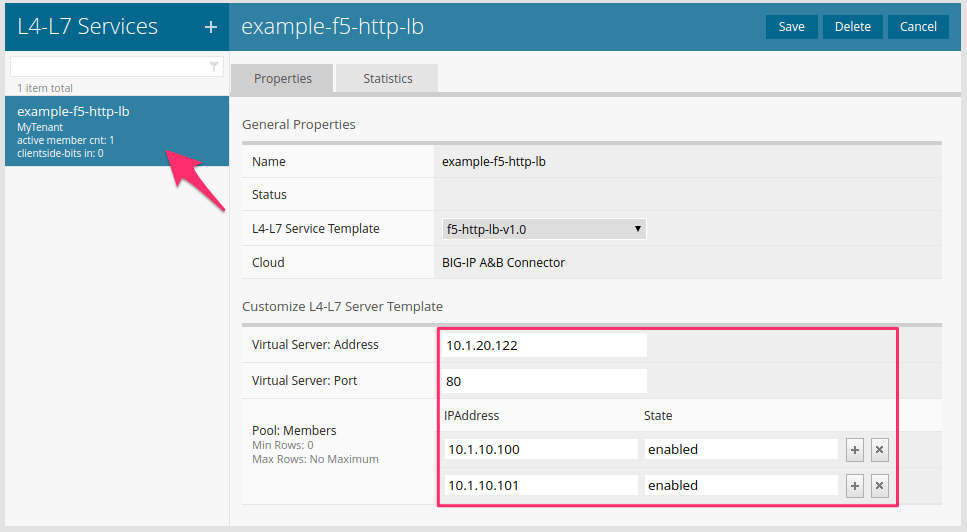
Open a Chrome window/tab to the BIG-IP A GUI at
https://10.1.1.10and login withadmin/admincredentials. Navigate to . Selectexample-f5-http-lbfrom the list of deployed services and examine the Components of the deployed service: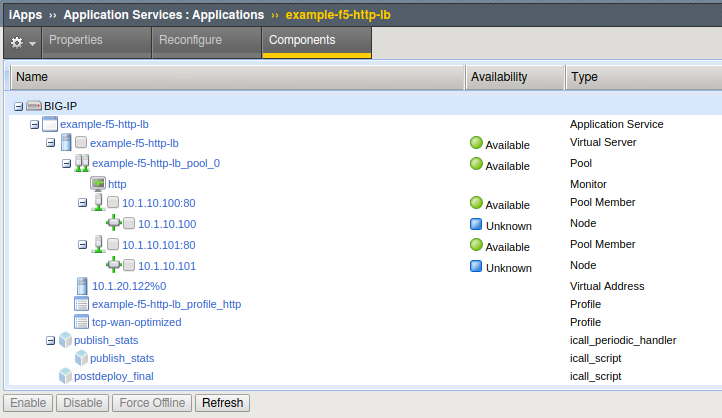
Update
Perform the following steps to complete this task:
Click the
Modify example-f5-http-lb Servicerequest in the folder.We will send a
PUTrequest to the Resource URI for the existing deployment and add a Pool Member as shown in the JSON Request Body: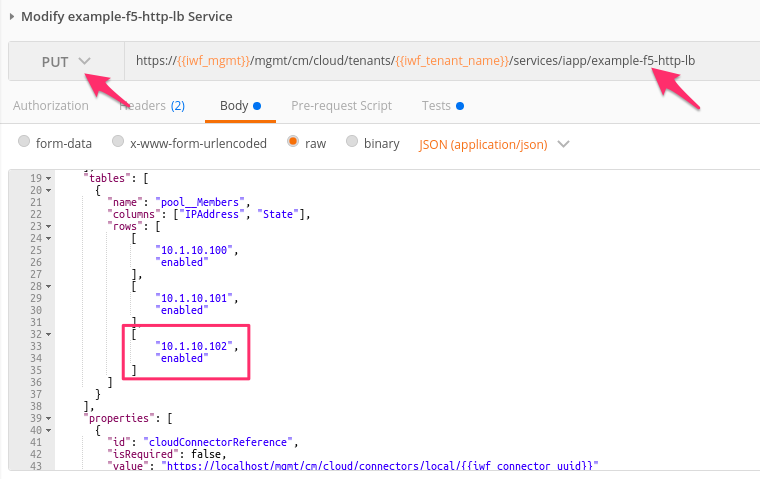
Click the Send button to Update the Service Deployment
Update the iWorkflow Tenant UI and notice that the Service has been updated:
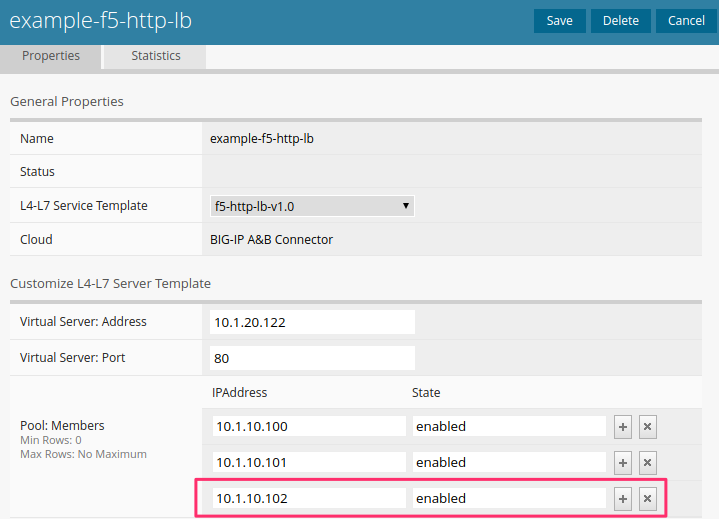
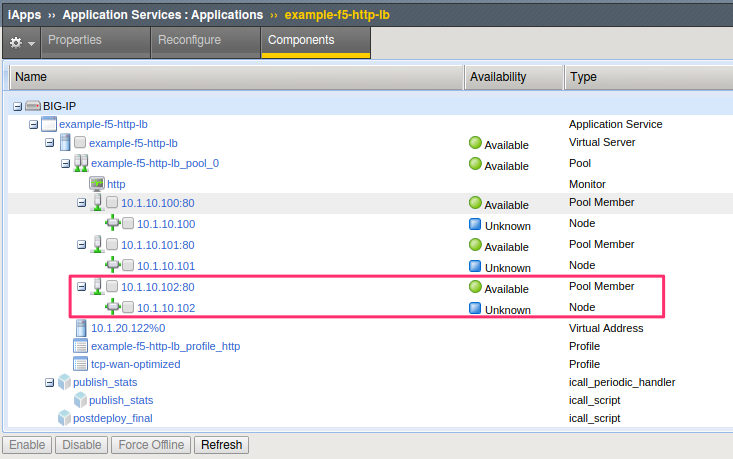
Update the BIG-IP GUI and notice that the Components tree has been updated:
Read
Perform the following steps to complete this task:
Click the
Get example-f5-http-lb Servicerequest in the folder.We will send a
GETrequest to the Resource URI for the existing deployment.Click the Send button to Read the Service Deployment
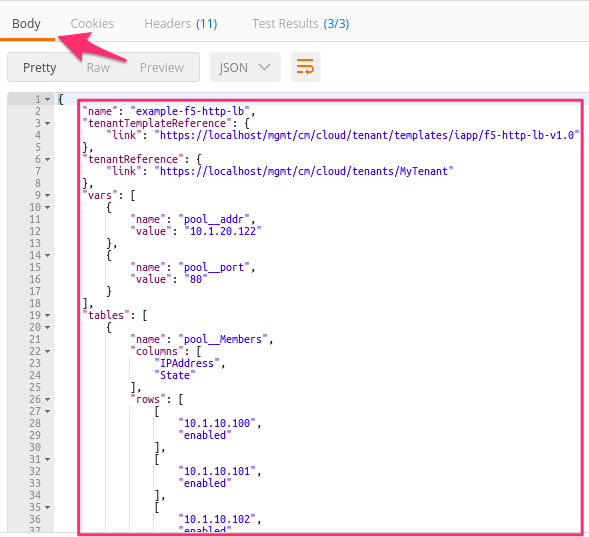
Examine the JSON Response Body to see the state of the current Service Deployment:
Delete
Perform the following steps to complete this task:
Click the
Delete example-f5-http-lb Servicerequest in the folder.We will send a
DELETErequest to the Resource URI for the existing deployment.Click the Send button to Delete the Service Deployment
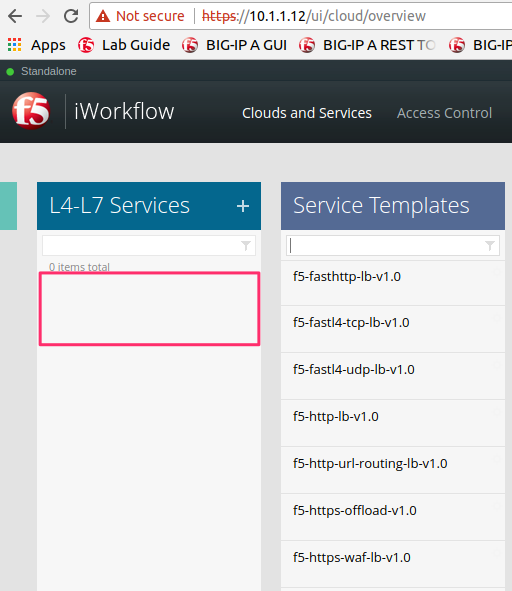
Update the iWorkflow Tenant UI and verify that the Service has been deleted:
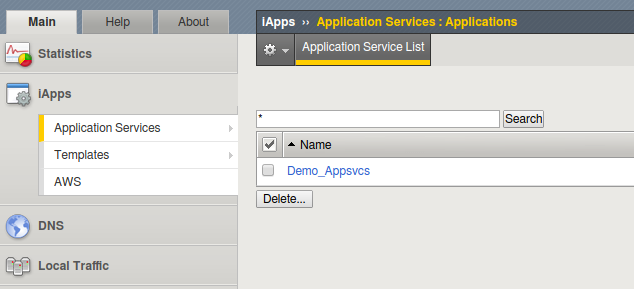
In the BIG-IP GUI navigate to and verify the service was deleted.
Task 3 - Deploy Additional Services
Examples Create requests are included in the
Lab 3.3 - Deploy L4-7 Services folder. For the remaining services
refer to the table below to see which ones apply most to your specific use
cases. You can repeat the steps in Task 2 for the additional services by
modifying the requests as needed.
| Service Name | Description |
|---|---|
f5-http-lb |
HTTP Load Balancing to a Single Pool |
f5-https-offload |
HTTPS Offload and Load Balancing to a Single Pool |
f5-fasthttp-lb |
Performance-enhanced HTTP Load Balancing to a Single Pool |
f5-fastl4-udp-lb |
Generic L4 TCP Load Balancing to a Single Pool |
f5-fastl4-udp-lb |
Generic L4 UDP Load Balancing to a Single Pool |
f5-http-url-routing-lb |
HTTP Load Balancing with URL Based Content Routing to Multiple Pools |
f5-https-waf-lb |
HTTPS Offload, Web Application Firewall Protection and Load Balancing to a Single Pool |