Community Training Classes & Labs > F5 Programmability Training Index
Lab 2.4: Deploy L4-7 Services
To drive iApp automation-based L4-7 deployments, iWorkflow includes the capability to create a Tenant Service Catalog via L4 – L7 Service Templates. This model of deployment enables Declarative automation of F5 L4-7 services provided the underlying iApp templates are designed with a declarative presentation layer in mind. To demonstrate this capability we will create a simple Service Catalog Template and deploy an application from a tenant on our BIG-IP devices using the App Services iApp.
Task 1 - Install the App Services iApp on iWorkflow
iWorkflow serves as the Source-of-Truth for iApp templates. As a result iApp templates that will be used to automate deployments on BIG-IP must be installed on iWorkflow first. Once installed, iWorkflow will automatically determine when a template needs to be installed on BIG-IP and perform the needed actions.
Note
iApp template installation on BIG-IP devices occurs during the first service deployment to a device.
To assist in deployment of the App Services iApp template and its associated sample service templates a Postman collection has been created. We will first import the collection into Postman and then use it to install the template into iWorkflow.
Perform the following steps to complete this task:
Import the following collection URL using ‘Import’ -> ‘Import from Link’:
https://raw.githubusercontent.com/f5devcentral/f5-automation-labs/master/postman_collections/AppSvcs_iApp_Workflows.postman_collection.json
Expand the
AppSvcs_iApp_Workflowscollection. Then open the2_Install_on_iWorkflowfolder and click theInstall AppSvcs Template on iWorkflowitem.You can examine the Body of this request, however, understand that it contains the minified code that comprises the iApp and will not be very readable. This collection uses the underlying variables that have already been set (
iwf_mgmtandiwf_auth_token) to make installation simple.Click the ‘Send’ button to install the iApp.
Task 2 – Create the f5-http-lb L4–7 Service Template
An L4-7 Service Deployment on iWorkflow is driven by the creation of an L4 – L7 Service Template. These templates allow a provider (administrator) to specify the values of specific fields from an origin iApp presentation layer. Additionally, the provider also defines the tenant interface to the service by marking which fields are ‘Tenant Editable’ and therefore visible during service deployment from the tenant. You can think of a Service Catalog Template as a filter that allows the vast majority of fields to be filled in or defaulted while only exposing the minimal set of fields required to deploy a service.
In this task we will create a Service Catalog Template that utilizes the App Services iApp you just installed.
Perform the following steps to complete this task:
Expand the
3_iWorkflow_Service_Templates_Examplesfolder of theAppSvcs_iApp_WorkflowscollectionClick the “f5-http-lb Template” item in the collection. This request is pre-built and will create a new Service Template using the App Services iApp. Click the ‘Send’ button to create the template.
Open a Chrome tab to iWorkflow (https://10.1.1.6) and login with admin/admin credentials. Expand the ‘Service Templates’ pane and double-click the “f5-http-lb” template. Notice various defaults have been populated (e.g. port ‘80’ for the pool__port variable) and some fields have been marked as ‘Tenant Editable’:

Task 2 – Tenant L4-7 Service Deployment
In this task we will perform CRUD operations based on a deployment of the Service Catalog Template created in the previous task.
Perform the following steps to complete this task:
Open a new Chrome tab to iWorkflow (https://10.1.1.6) and login with the credentials Username: tenant, Password: tenant. Expand the ‘L4-L7 Services’ pane.
Switch back to F5 Automation & Orchestration Intro Postman Collection and click the “Step 1: Create TENANT Service Deployment” item in Lab 2.4. Examine the URL and JSON body. We will be creating a new Tenant Service Deployment under ‘MyTenant’ with the properties marked as ‘Tenant Editable’ provided:
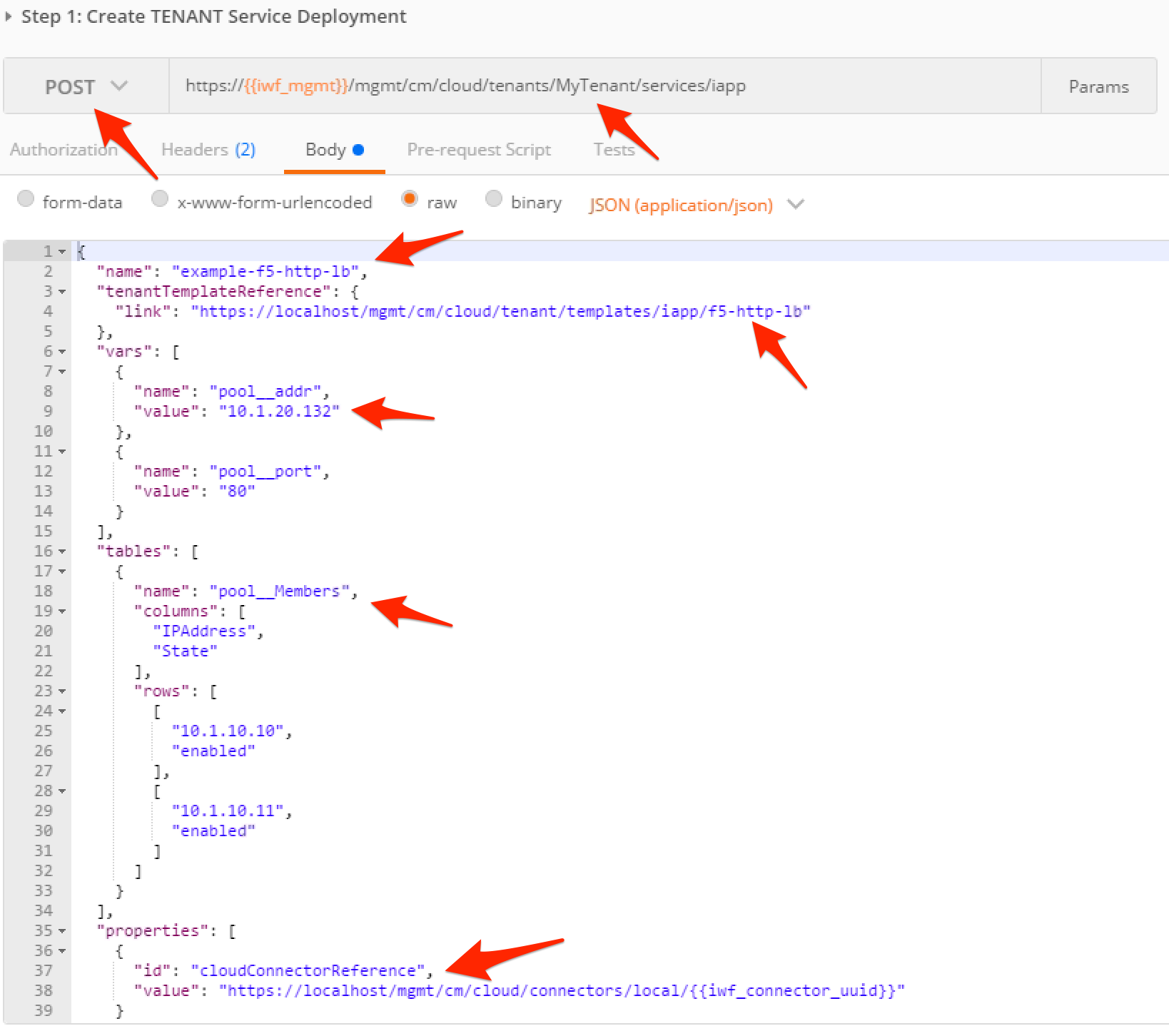
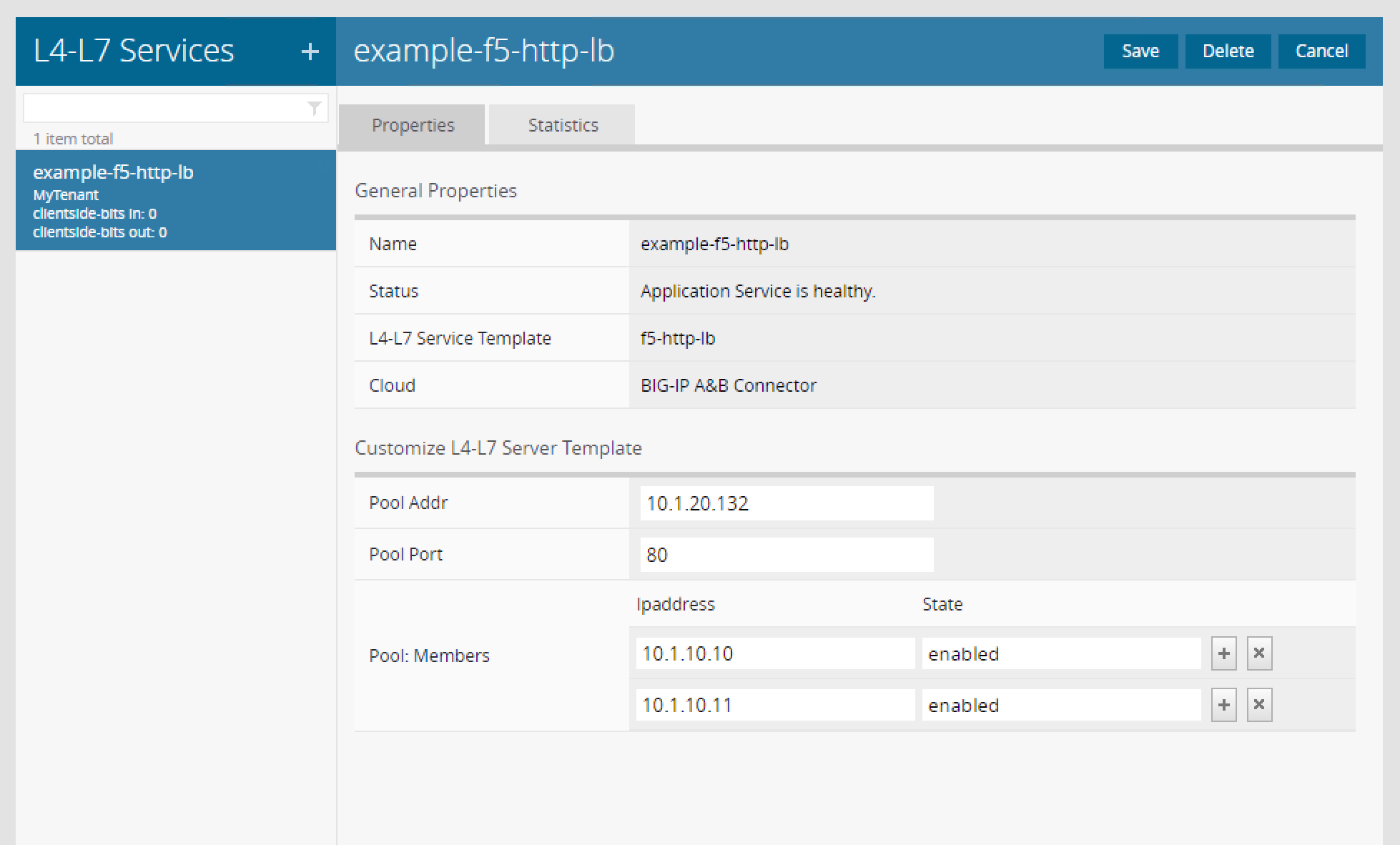
Click the ‘Send’ button to create the Service Deployment. Examine the response. The iWorkflow GUI in your Chrome tab will also reflect a new item in the Services pane:
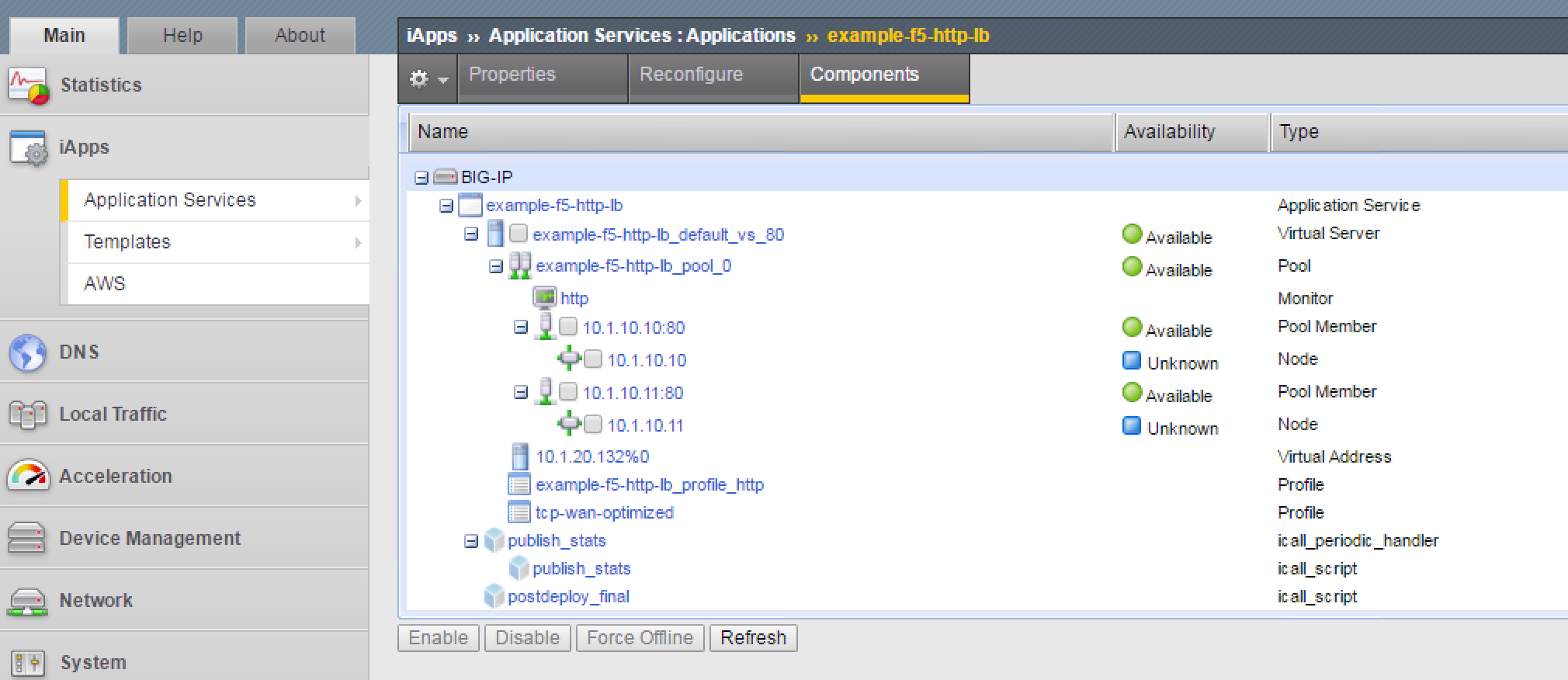
Open a Chrome tab to BIGIP-A. Click on iApps -> Application Services -> Applications -> example-f5-http-lb to view the config that was deployed on BIG-IP:
Go back to Postman and click the “Step 2: Get TENANT Service Deployment” item in the collection and click ‘Send’. This item is an example of a Read operation of the service definition. The response should match what you see in the iWorkflow GUI when viewing the properties of a deployment.
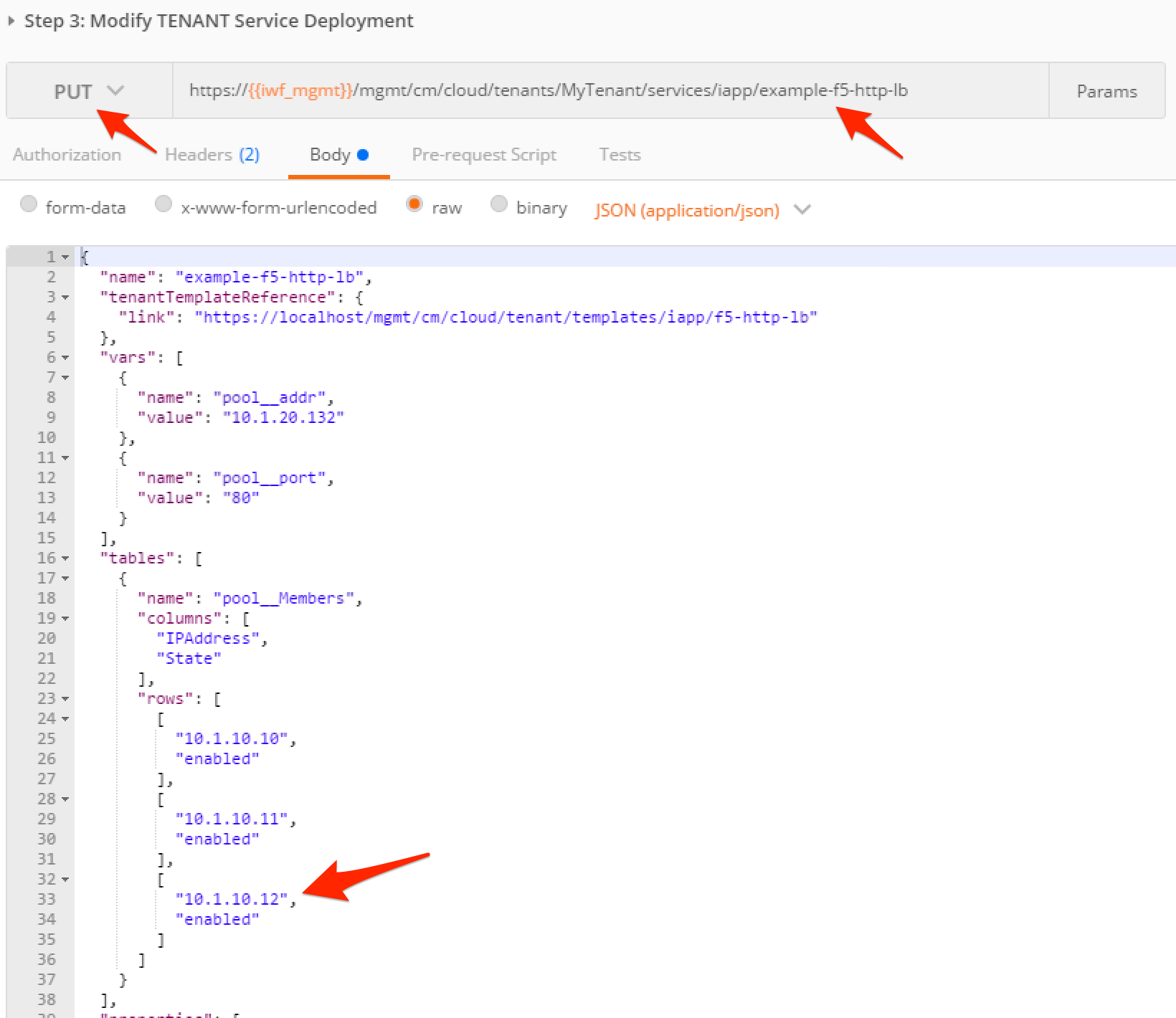
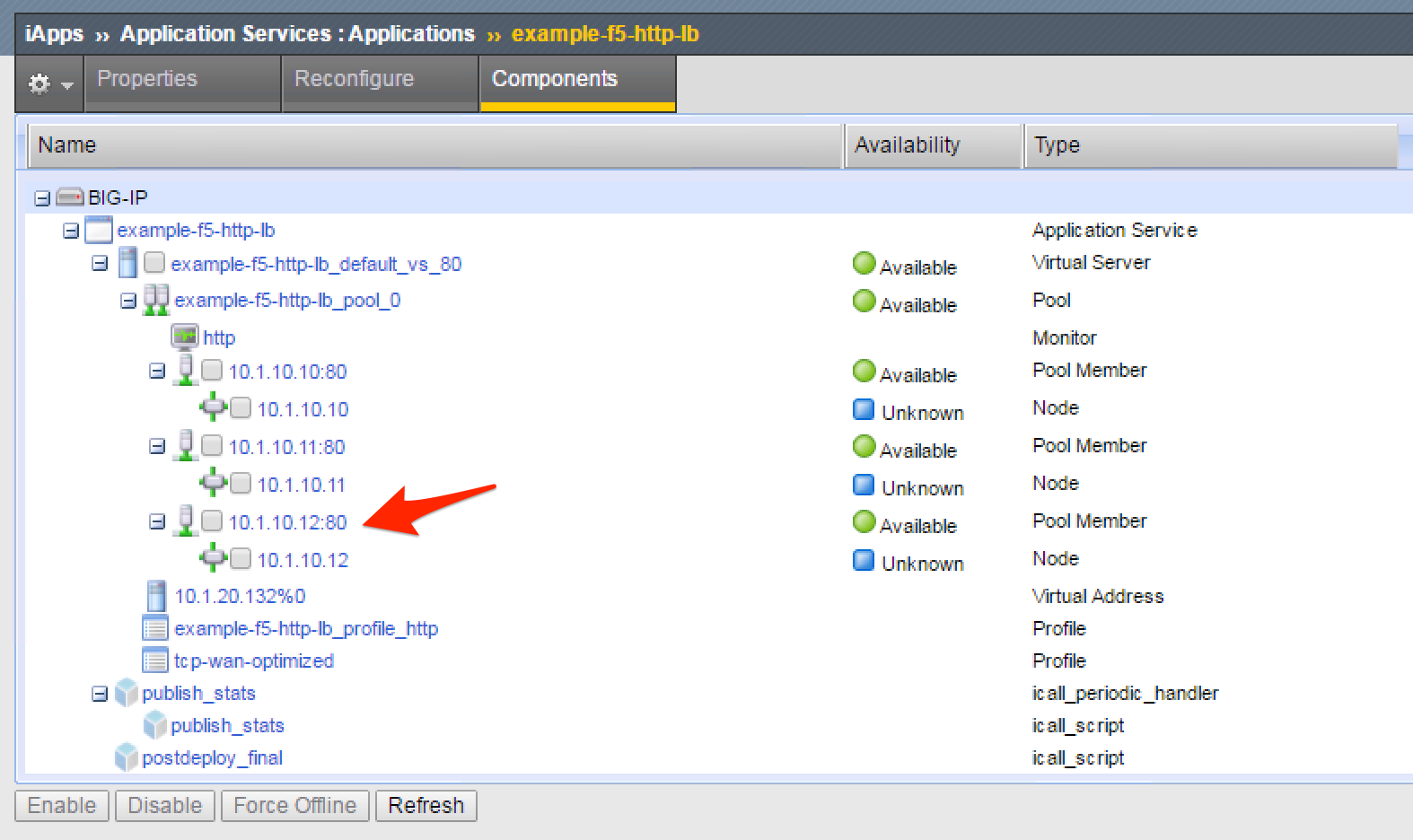
Click the “Step 3: Modify TENANT Service Deployment” item in the collection. This request is an example of an Update operation. Notice that we are sending a PUT request to the URL representing the service deployment. Examine the JSON body and note that in the ‘pool__Members’ table there is an additional pool member with an IP of 10.1.10.12 that will be added. Click the ‘Send’ button to re-deploy the service:
Verify that the pool member was added on BIG-IP:
Go back to Postman and click the “Step 4: Delete TENANT Service Deployment” item. This item will send a DELETE request to the URL for the service deployment. Click ‘Send’ and verify that the deployment has been removed in the iWorkflow and BIG-IP GUIs.